
How do I search for foods from different databases?
Choose which food databases Almendra searches, such as CENAN or USDA, in General Settings or with the search filter inside a meal plan.
Updated January 6, 2022
There are two cases you might be referring to:
1. Change the general setting for all searches:
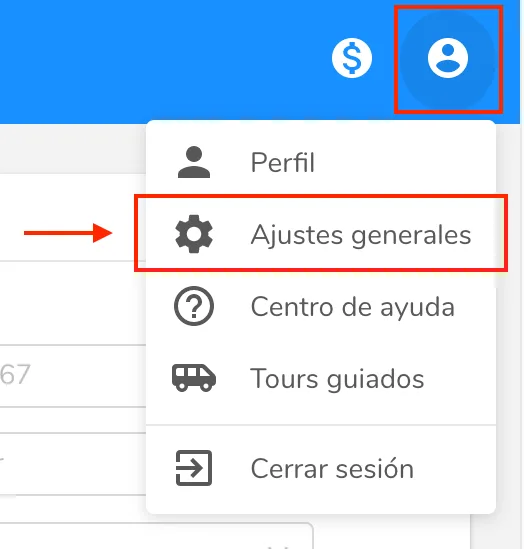
- Go to General Settings:
- Click the Databases field, and you’ll see some options appear:
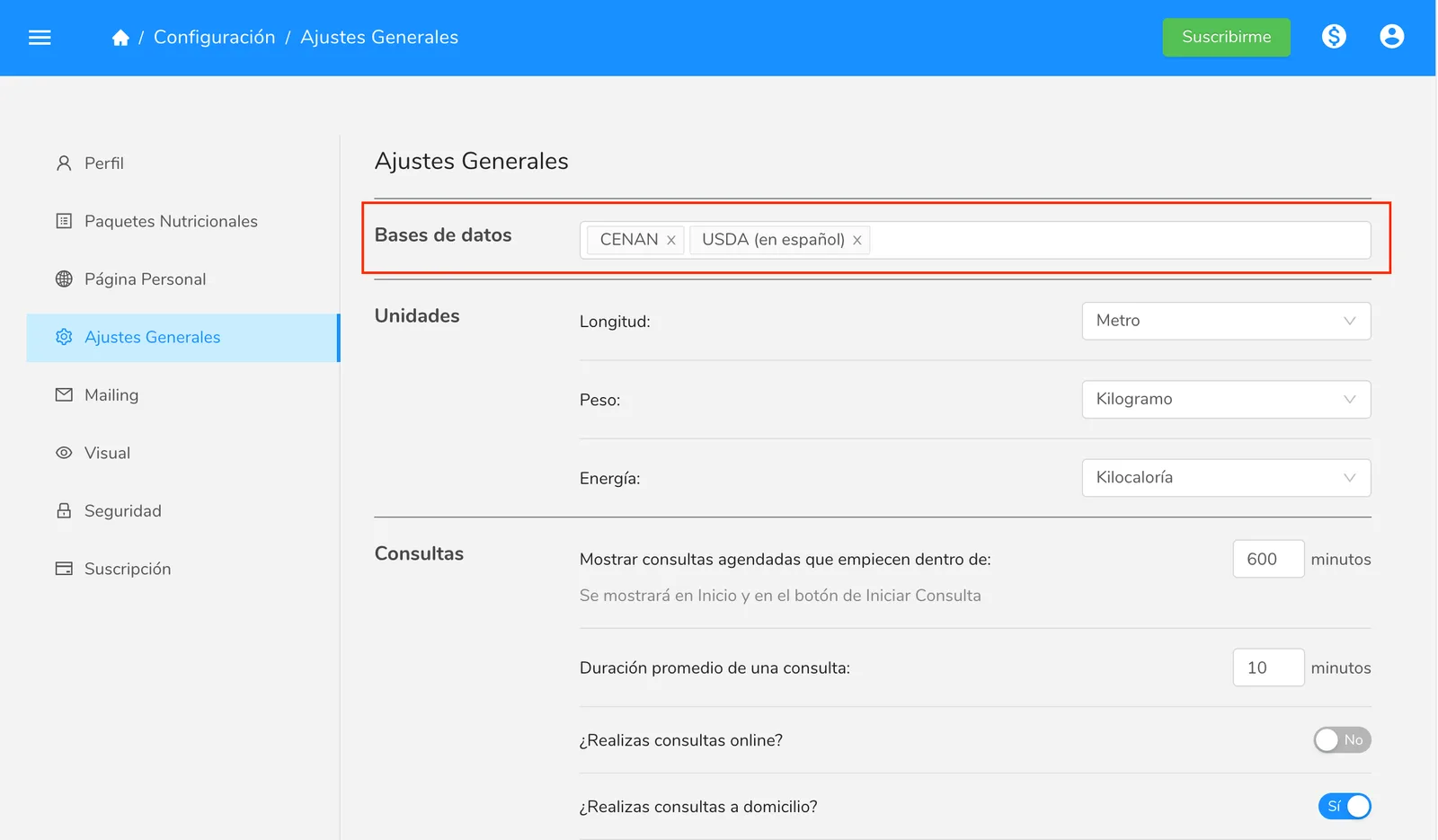
There you’ll see all the food databases available in Almendra (by the time you read this there may be more databases than in the image). The image above shows that you have CENAN, from Peru, and USDA, from the United States, selected, both in Spanish.
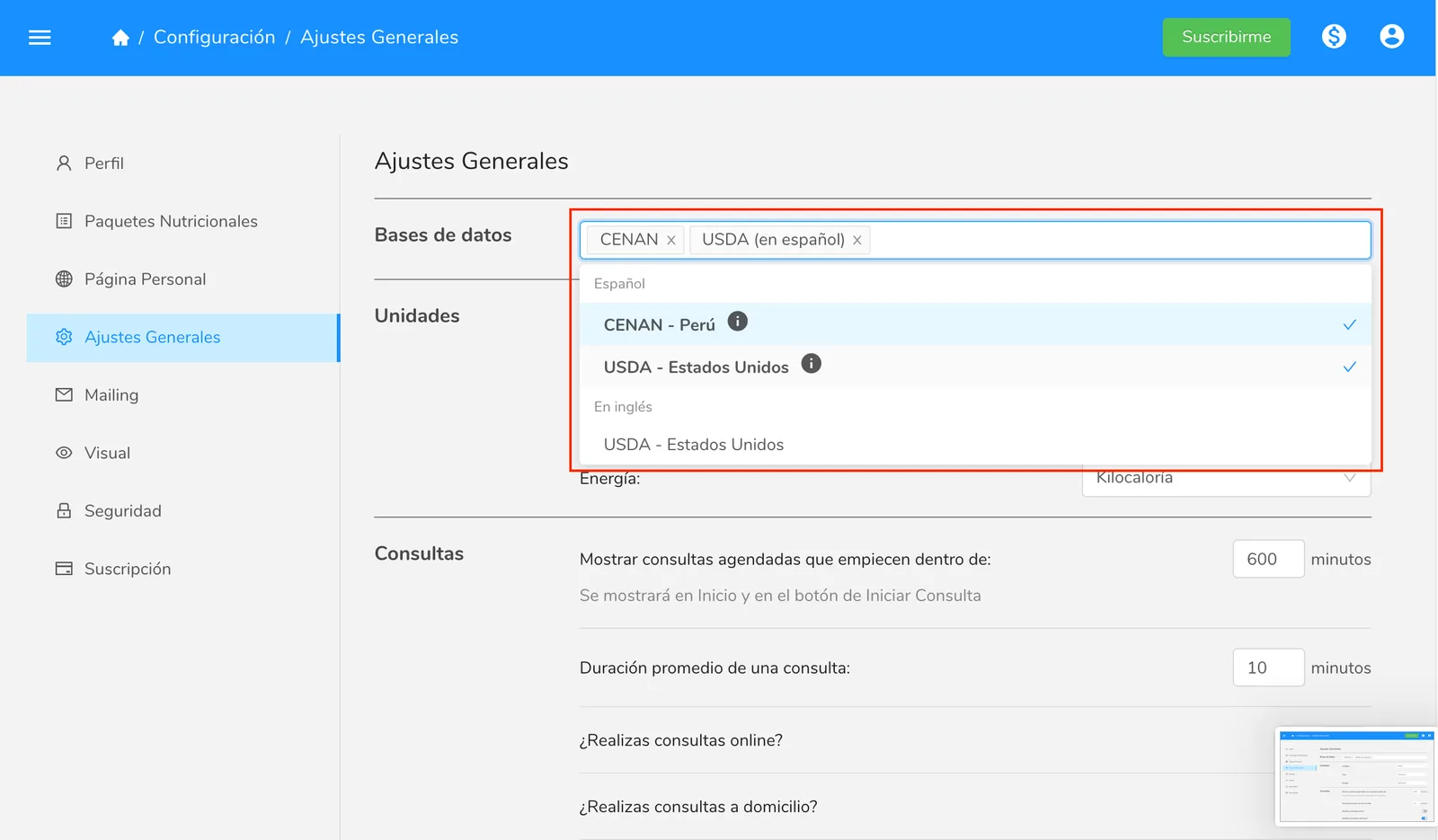
As you can see, the databases are divided by language, and all your databases must be in the same language so that your food search isn’t distorted.
Consider the following example (it’s not actually possible to do, but it explains why you can’t have two languages at once): suppose you have CENAN (in Spanish) and USDA (in English), and you type the characters “pal” in the food search to find “palmito” (heart of palm), and the search returns both “palmito” and “palm oil”. This would let you put a food in English in the patient’s diet, and the diet would have foods in two languages.
To choose a database, just click it.
2. Change the search in the food search bar:
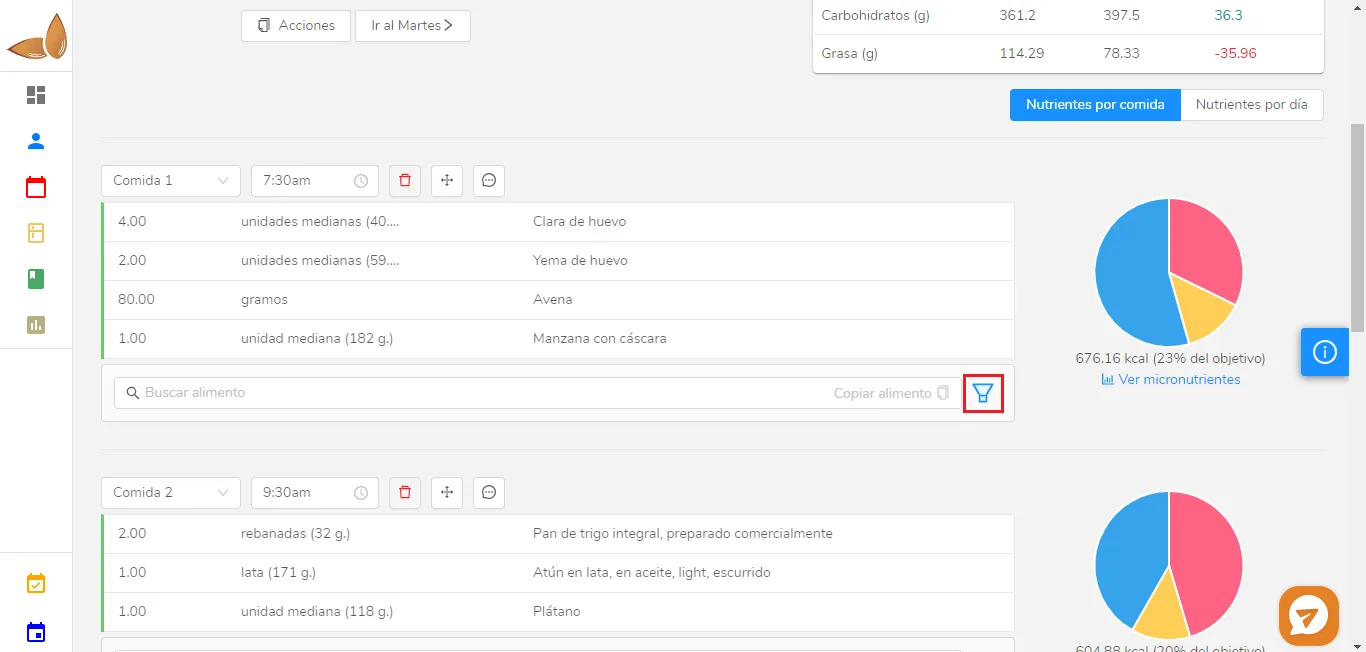
In a meal plan, click the filter icon, located to the right of the search bar. Once you open it, you can select the sources you want: your own foods, recipes, or foods from databases:
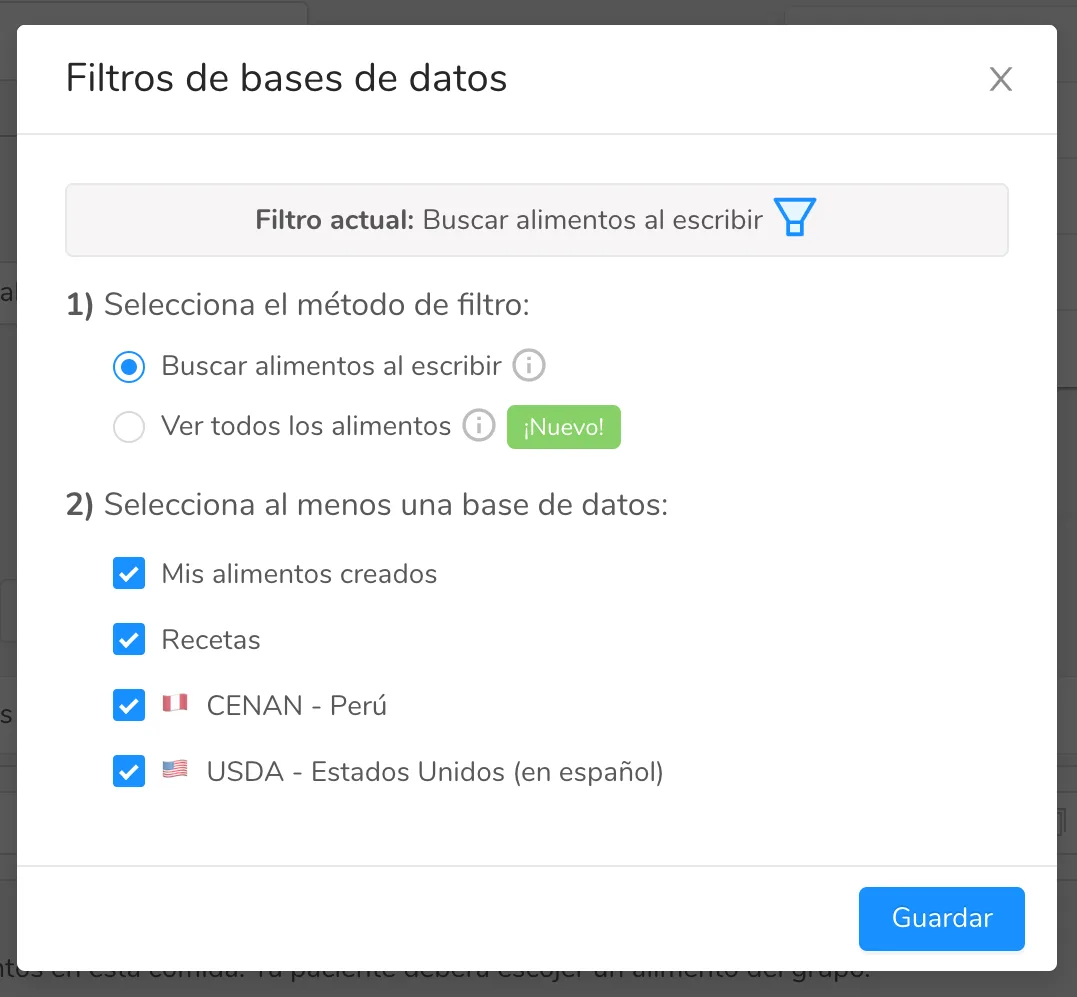
Select the database you want and search for the foods.
Can’t find what you’re looking for?
Our team replies within 1 business day, Monday to Friday 9:30 AM – 6:00 PM (GMT-5).