
How do I create a free-text meal plan?
Create a free-text meal plan in Almendra: type one food per line, place it into meals, and link recipes. Nutrients are not calculated in this plan type.
Updated January 7, 2022
In a free-text meal plan you can type the foods directly into the plan’s meals, without having to pull them from a database. If you want more detail about the free-text meal plan, we recommend reading this article: What is a free-text meal plan?
Creating one is simple:
1. Create the plan from the patient’s profile or from the appointment (the image shows the patient’s profile):

Click the green button to start filling in the plan.
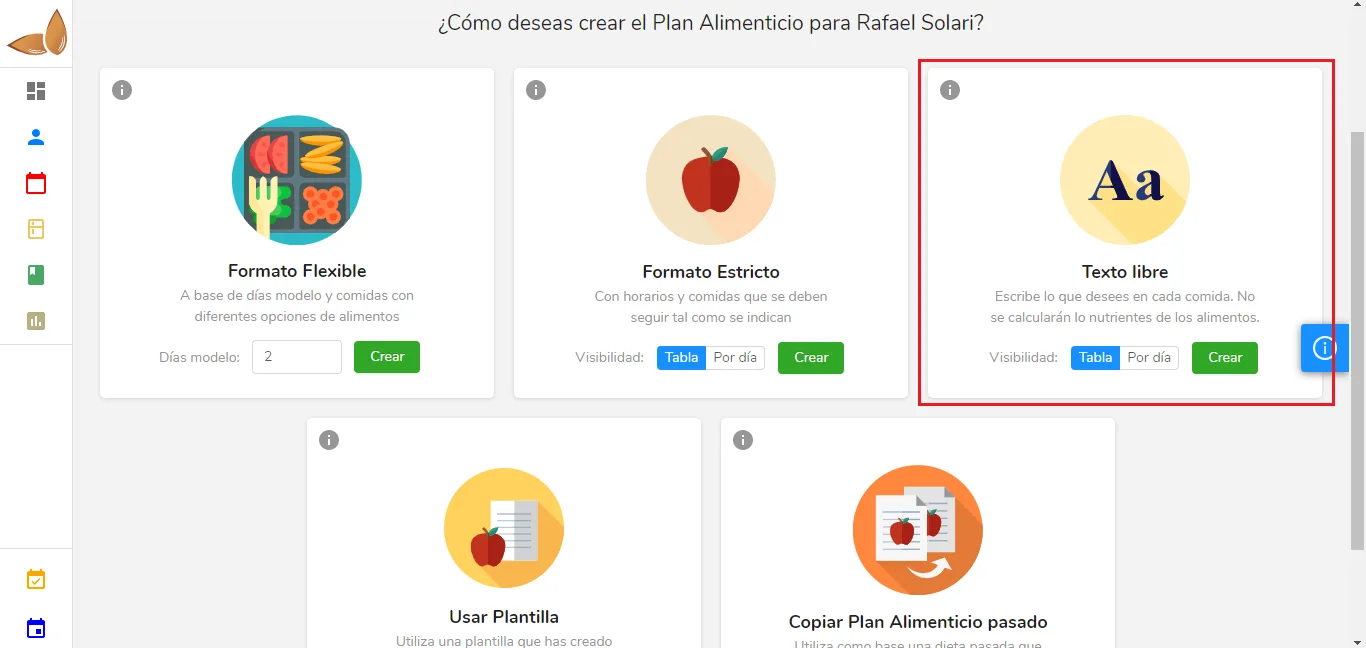
2. Click “Create” in the “Free-text” box (you can choose “Table” or “By day” visibility; we recommend the table for a friendlier interface):
3. Select the plan’s calorie goals and then click “Next”:
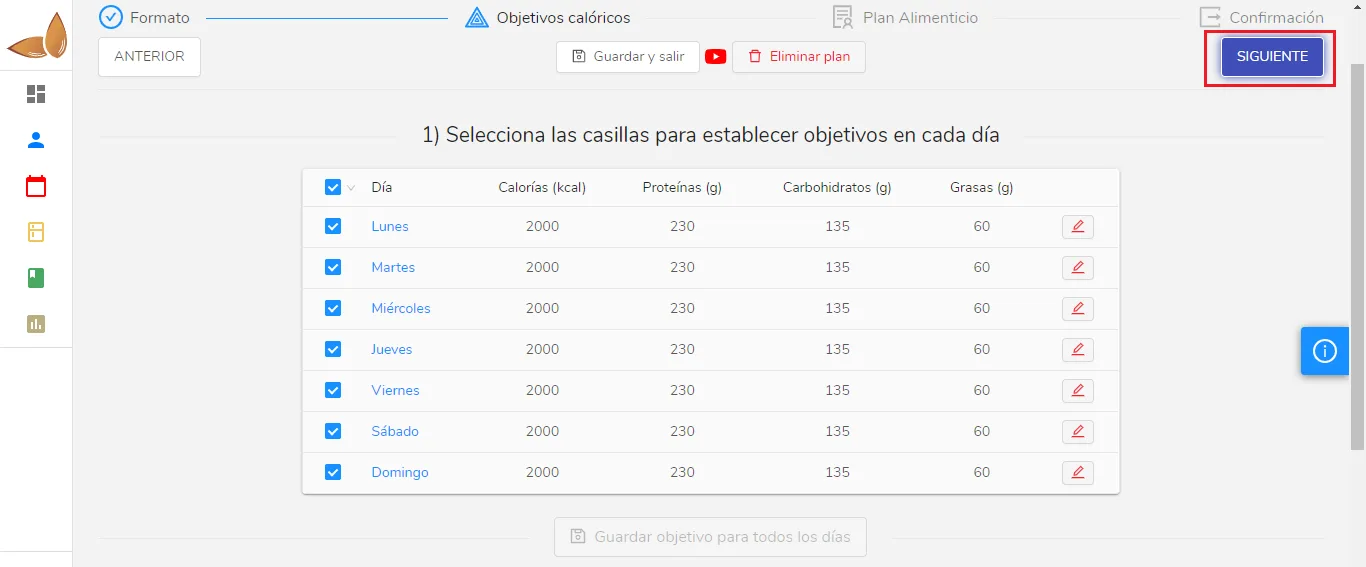
So far, creating a free-text plan is almost the same as a strict or flexible plan: create it, choose the format, and choose the calorie requirements. The next step is where things change:
4. Food selection:
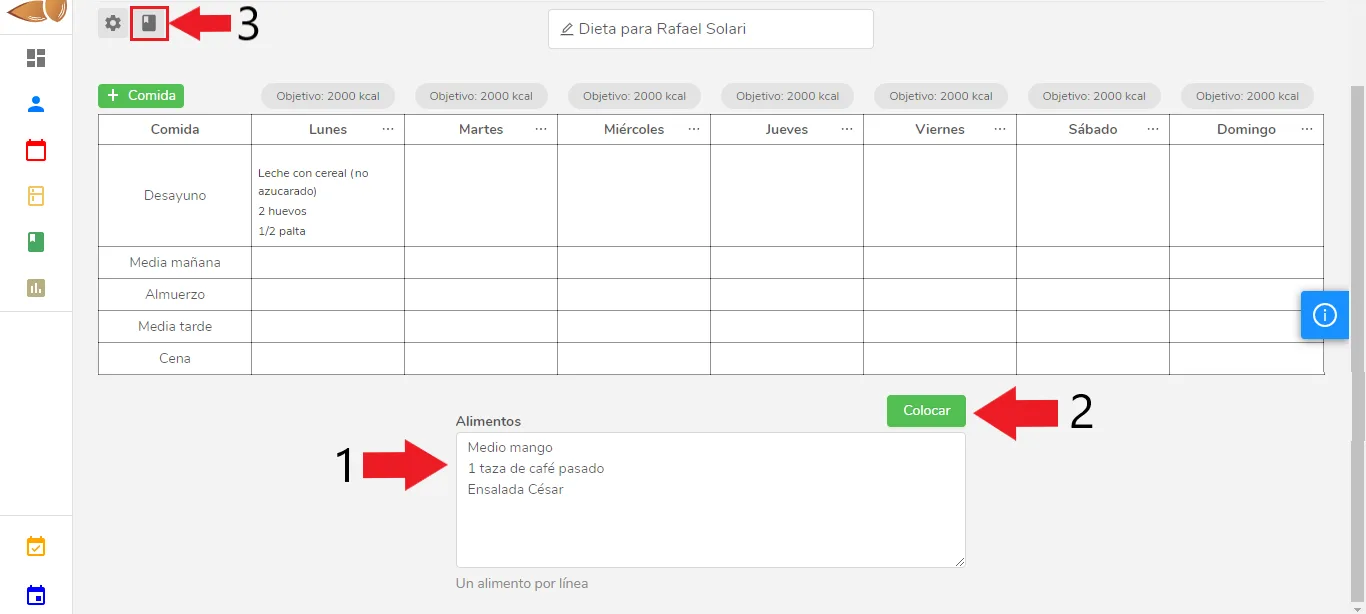
Let’s go through it point by point:
-
In this field you enter the foods you want in a meal, for example, Thursday’s Breakfast. Remember to write one food per line. If you had written what’s in the image like this, for example: “Half a mango, 1 cup of drip coffee, Caesar salad” (all on a single line), then when you place it in a cell it will be treated as a single food. You can write whatever you want; there is no predefined format to follow.
-
Once you finish writing, click “Place foods”. All the cells will turn gray with a “+” sign if there is nothing in that cell, or green with a check mark if there are already foods in that cell. Click the cells where you want to place what you wrote and then click the “Finish” button (this button will be in the same position as the “Place foods” button).
-
This small button is used to add recipes to the meal plan. Since foods and recipes are not pulled from databases, there is no way to tell whether a food you typed is a recipe. If you look at the image above, in the text field we have Caesar salad. The idea is that you already have “Caesar salad” in your recipes section (that you created it beforehand). If so, you can bring in its ingredients and instructions by clicking the button marked number 3. There you search for “Caesar salad”, click the result that appears, and then click “Confirm” at the bottom right. The patient will be able to see the “Caesar salad” recipe in the PDF and in the app.
We have an article that explains point 3 in detail; we invite you to read it if you have questions: How do I add recipes to a free-text meal plan?
Remember that a free-text meal plan does not calculate the nutrients of the foods, since they are entered freely.
Once you’re done with the foods, click “Next” and you can download or send the plan as usual.
If you have any questions, please contact the support team through the chat.
Can’t find what you’re looking for?
Our team replies within 1 business day, Monday to Friday 9:30 AM – 6:00 PM (GMT-5).